Help
Top-up guide
Every step: creating an account, adding money to your wallet, topping up a game and linking LINE.
How to sign up
Free and under a minute. One account tops up every game.
Open the sign-up page
Press Sign in at the top right, then choose to create an account.
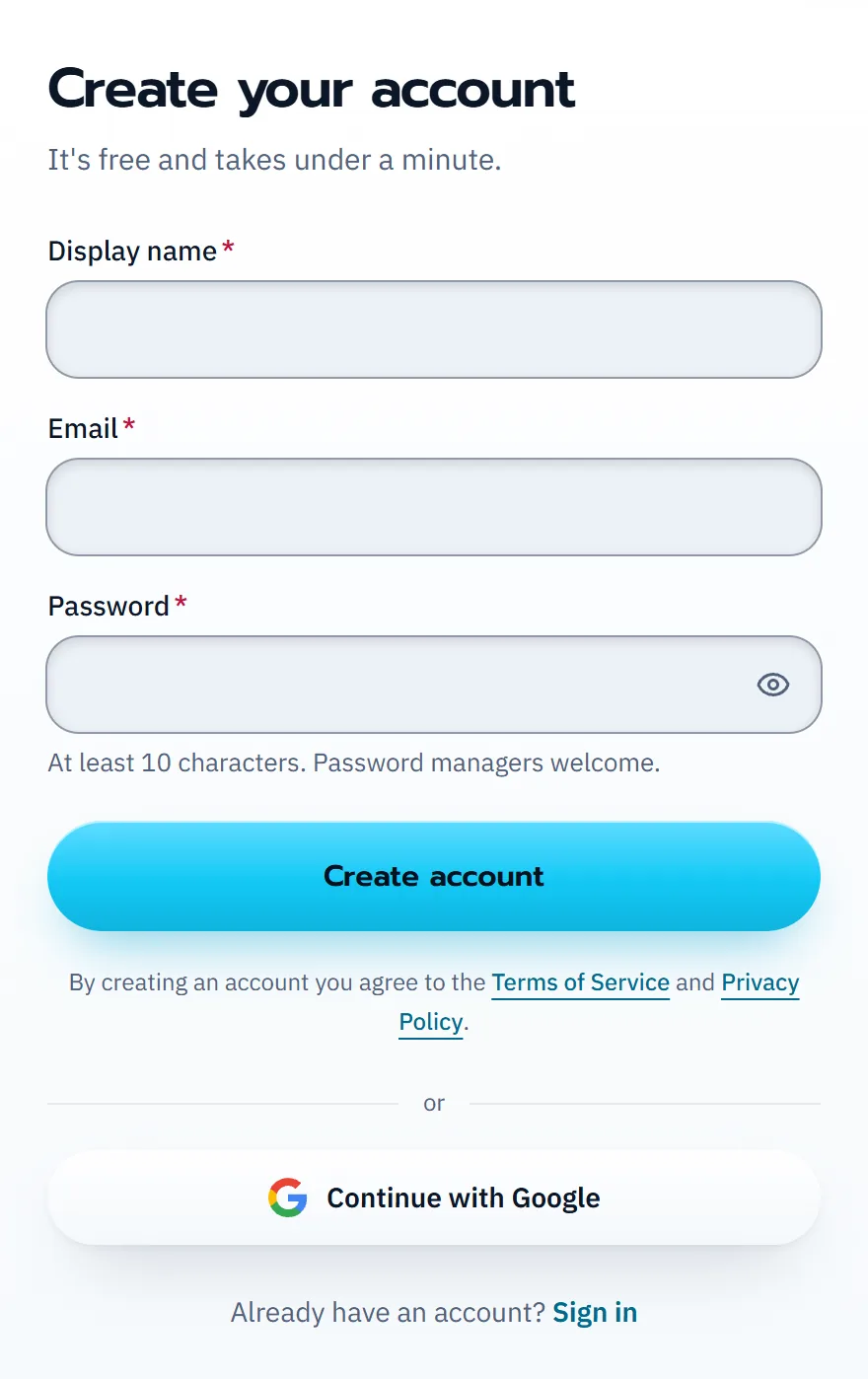
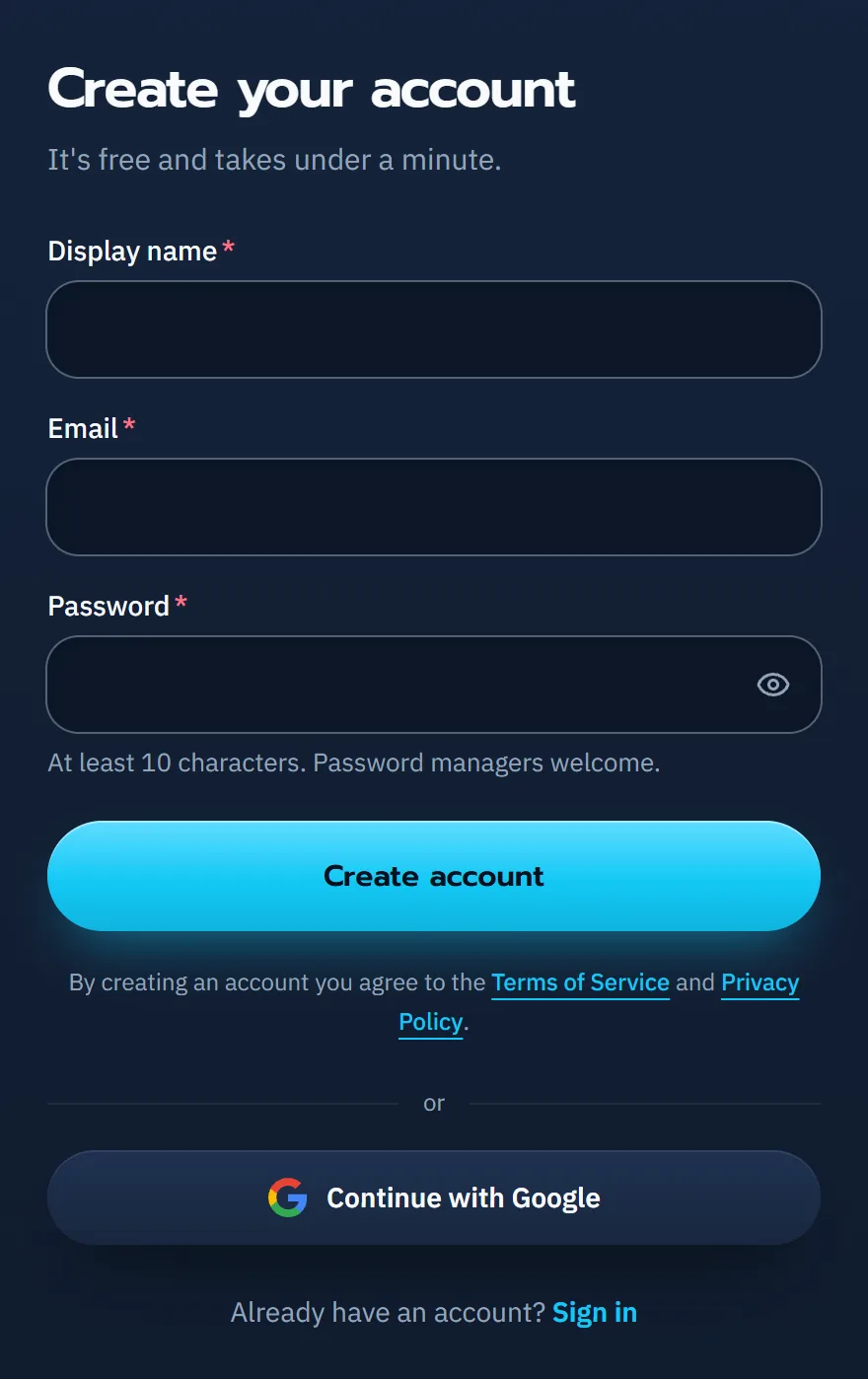
Enter a display name, e-mail and password
The password needs at least 10 characters. Then press the sign-up button.
Confirm your e-mail
Open the link we send you. Not there? Check spam, or send the link again.
You are ready
Once confirmed you are signed in and your wallet is ready to use.
Good to know
- If a working “Continue with Google” button is shown, you can sign in with Google without choosing a password.
- Never share your password. Our team never asks for it.
How to add money
Add money to your wallet first, then use it for any game. From 20 to 50,000 THB per top-up.
On the website with PromptPay QR
See how to top up in LINEOpen your wallet
Go to your account and press the add-money button.
Choose a method and an amount
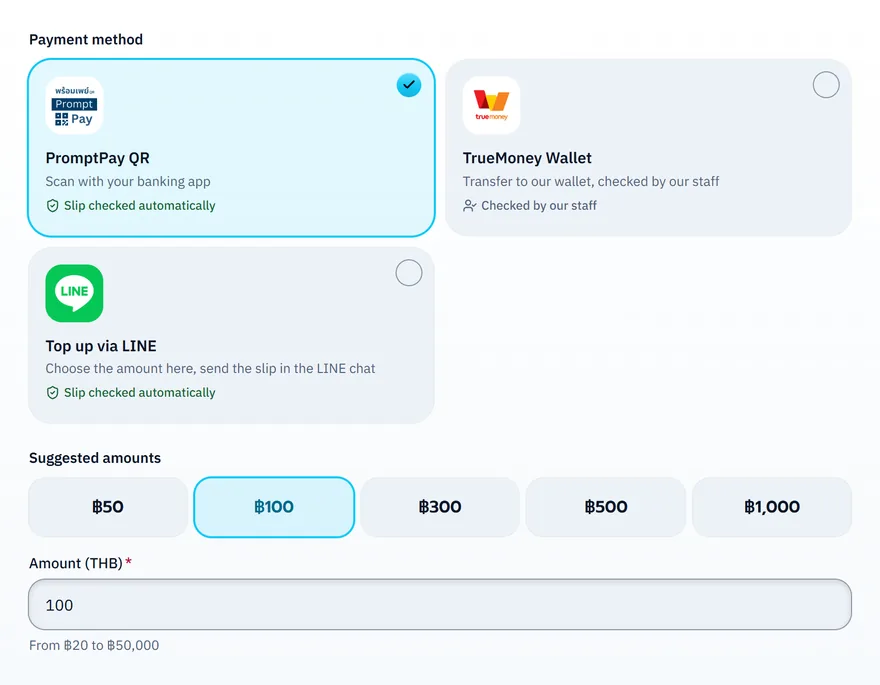
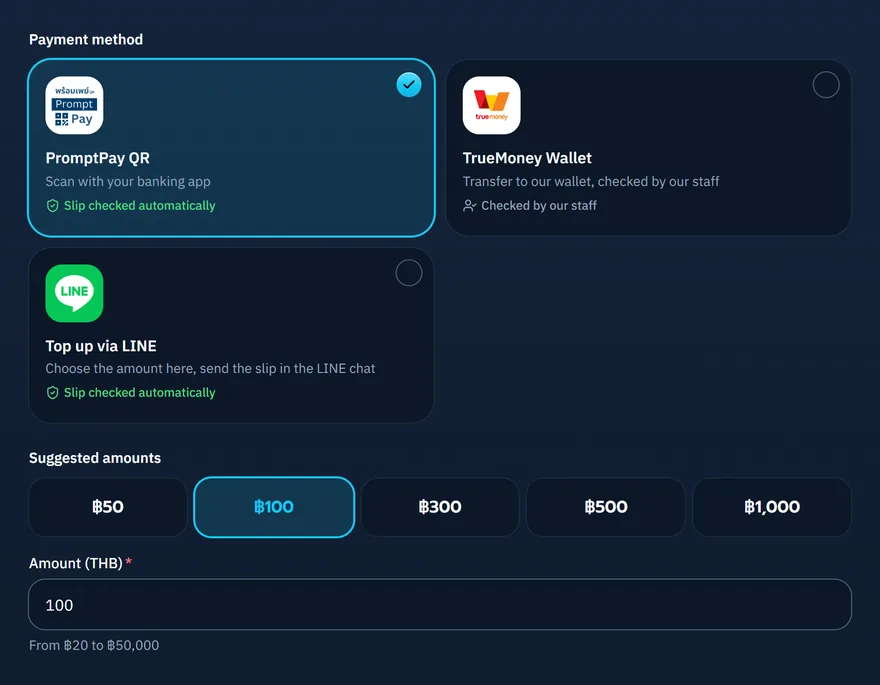
Pick PromptPay QR, or another method the page offers, enter the amount and continue.
Scan the QR with your banking app
Transfer exactly that amount and check the receiver's name. On one phone, save the QR picture and open it from your banking app.
Upload the slip
The slip from your bank, PNG or JPG up to 5 MB, before the countdown on screen ends.
Wait for the money to arrive
Usually checked in seconds. If it cannot be confirmed automatically, a staff member checks it and tells you.
Good to know
- Transfer exactly the amount shown. A slip can be used once.
- TrueMoney Wallet: transfer to the shop's number, enter the transaction number and upload the slip. The money arrives after a staff member checks it.
- If a top-up expired but you already paid, do not pay again; contact the team.
- Your wallet page keeps the full history of money in and out.
Add money through LINE
Choose an amount, pay by QR and send the slip in the shop's LINE chat. It goes to the same wallet as on the website.
Link LINE (once)
On the add-money page choose the LINE method, then press the link-LINE button. The steps are in the linking topic.
Choose an amount
Pick it on the add-money page, continue and open the LINE chat; or type “top up” in the chat and press an amount.
Scan the QR the shop sends
Use your banking app, check the receiver's name and transfer exactly that amount in time.
Send the slip picture in the chat
Send the picture itself from your phone, up to 5 MB.
Wait for the confirmation
The chat tells you the amount added and your balance, and the website updates by itself. If staff have to check it, you are told.
Good to know
- The chat offers 50, 100, 300, 500 and 1,000 THB. Choose other amounts on the website.
- One top-up can wait in the chat at a time; choosing a new amount replaces it.
- Type “balance”, “history” or “orders” to see them in the chat.
The shop on LINE
- You: Top up
- Shop:
Choose an amount
฿50฿100฿300฿500฿1,000
- Shop:
Scan with your banking app
฿100
Transfer the exact amount, then send the slip picture in this chat.
- You: Slip picture
- Shop:
Top-up successful
+฿100
How to top up a game
No game password needed, only your player ID. Most arrive within seconds.
Choose a game
Search for it on the home page or the all-games page.
Choose a server, if asked
Some games ask for a server or region first. Pick the one your game account is on.
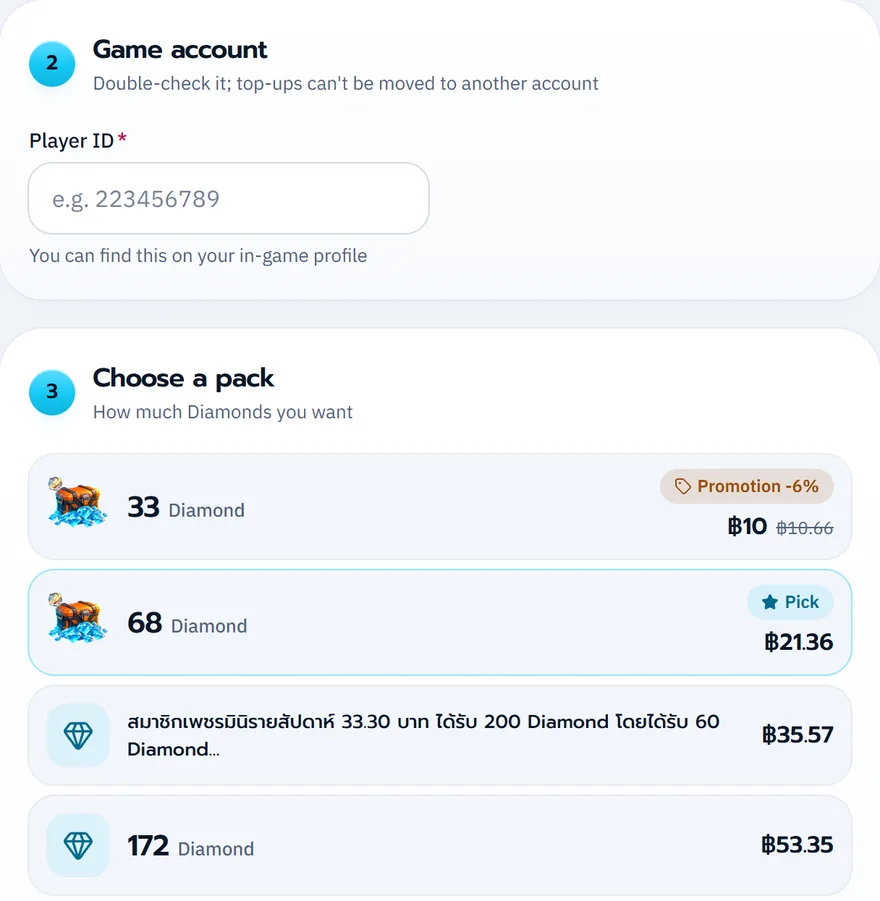
Enter your game account details
Fill in the player ID as the fields ask. You can find it on your in-game profile.
Choose a package
Buy now, or add to the cart to buy several at once (up to 10).
Check and pay
Pay from your wallet, by PromptPay QR, or use your wallet and transfer the rest. Enter a coupon here if you have one.
Follow the order
The order page updates by itself. For codes and gift cards, the code is shown on that order's page.
Good to know
- Check the player ID before ordering: a delivered top-up cannot be moved to another account.
- The money is held first and taken only on delivery. A failed delivery returns it to your wallet automatically.
- If an order says it is being checked, do not order again. The team will tell you the result.
How to link LINE
Link once, then add money and send slips in the shop's LINE chat.
Start linking
Signed in, open account settings and press the link-LINE button (or choose LINE on the add-money page).
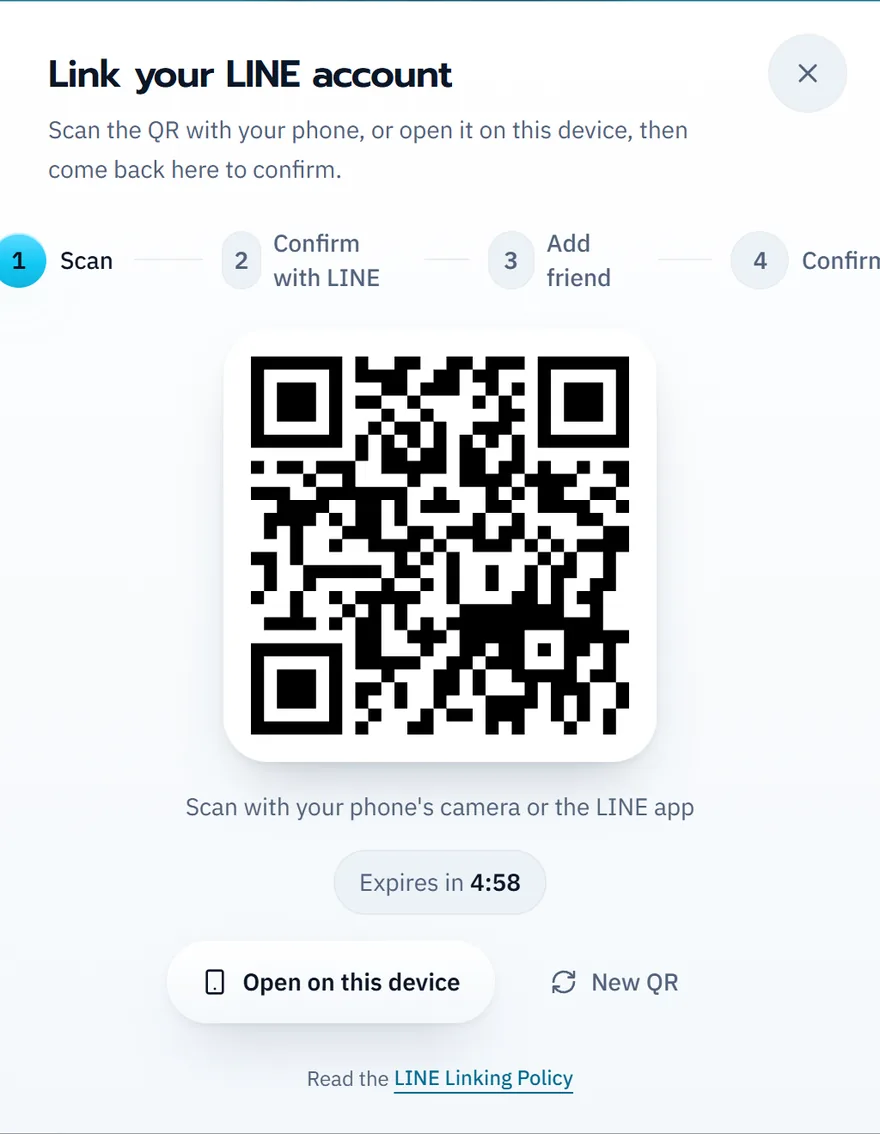
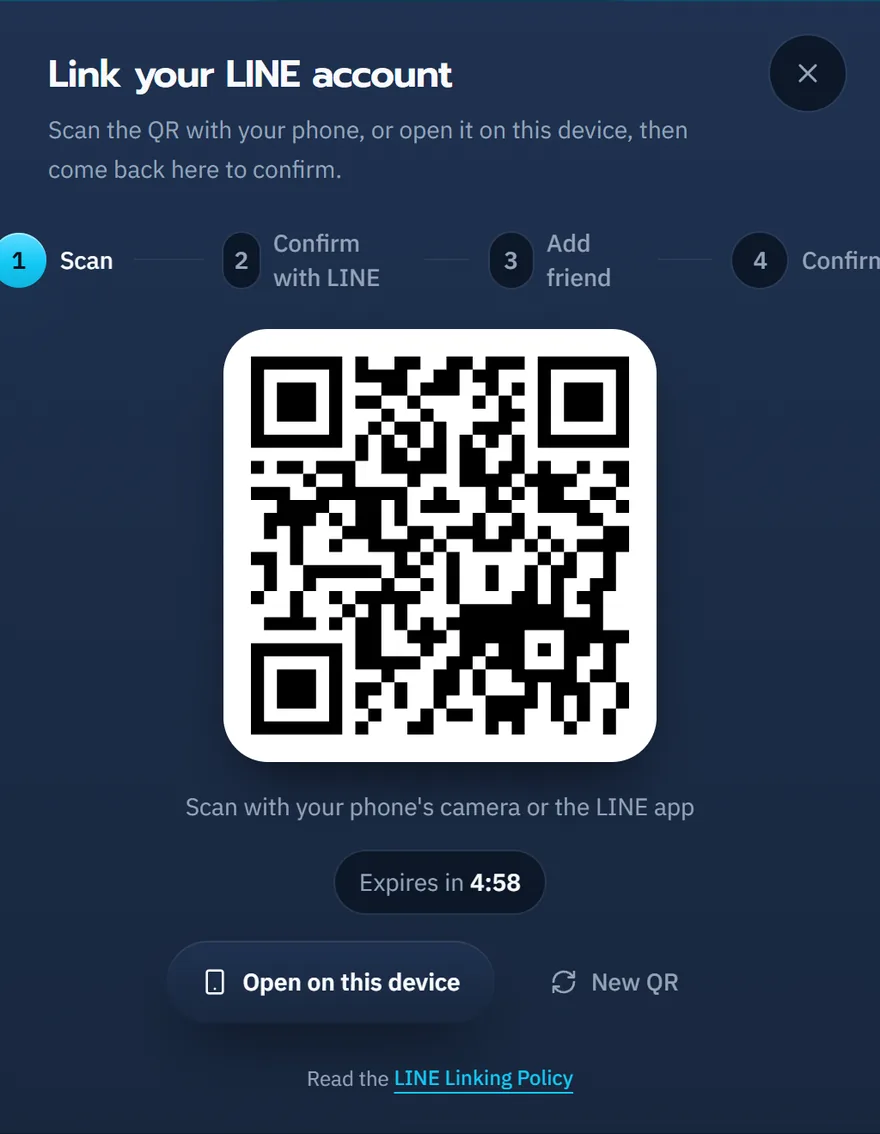
Scan the QR
Use your phone camera or the LINE app. Already on the phone? Press “open on this device”.
Confirm with LINE and add the shop
Sign in to LINE, allow access and add the shop's account as a friend.
Come back and confirm
Return to the screen that showed the QR, check the LINE name and confirm the link.
Add money in the chat
Pick an amount in the chat (or type “เติมเงิน”), pay with the QR you receive and send the slip picture back. It goes to the same wallet as on the website.
Good to know
- Only link with a QR you opened yourself. If someone sends you a QR or link, do not continue.
- The QR expires; you can make a new one, and unlink in account settings at any time.
- If you see no LINE option, the shop has not switched it on.
Frequently asked questions
The confirmation e-mail did not arrive
Check your spam folder, then send the link again. Make sure the address is right, or use another one.
My slip says a staff member will check it
It could not be confirmed automatically this time. Do not pay or upload again; the money arrives once it is checked, and you are told the result.
My slip was refused
Check that the amount matches, it went to the account shown and the slip was never used before. If it is right, contact the team with the slip.
I entered the wrong player ID
If you have not paid, cancel the order and order again. A delivered top-up cannot be moved to another account; contact the team if in doubt.
The top-up failed. Is my money gone?
No. The held money returns to your wallet automatically; see your transaction history.
Can I cancel an order?
Only while it is waiting for payment, from the order page. Do not cancel if you have already transferred money.
I forgot my password
On the sign-in page press “Forgot password?”, enter your e-mail and open the link within 30 minutes to set a new one. If you signed up with Google, just sign in with Google.
Still stuck? Write to our team; you can attach pictures.
Contact the team